How to create the Tic-Tac-Toe game in Blazor WebAssembly in one hour!
Published: Saturday 8 May 2021
It's possible to create the Tic-Tac-Toe game in Blazor WebAssembly in one hour.
How does Tic-Tac-Toe work?
Tic-Tac-Toe is a two player game that is played on a 3x3 grid. One of the players will use the 'O' mark, and the other will use the 'X' mark.
| X | ||
| O | X | |
| O | X |
The classes
We decided to create a number of classes and an enum.
MarkEnum enum. This would represent each player mark on the grid, with the 'O' mark represented with an index of 0, and the 'X' mark represented with an index of 1.
// MarkEnum.cs
public enum MarkEnum
{
	O = 0,
	X = 1
}
Next, the different winning combinations needed to be recorded. Creating a WinningCombination class enabled us to do that.
// WinningCombination.cs
public class WinningCombination
{
	public int Square1 { get; }

	public int Square2 { get; }

	public int Square3 { get; }

	public WinningCombination(int square1, int square2, int square3)
	{
		Square1 = square1;
		Square2 = square2;
		Square3 = square3;
	}
}
A model for each square
Next, we needed to create a Square model. There would be nine instances of the Square model, with each instance representing a square on the grid.
public class Square
{
	public int Number { get; }

	public MarkEnum? Mark { get; set; }

	public Square(int number)
	{
		Number = number;
	}
}
The game model
Finally, we went ahead and created a Game model.
Game model has a number of properties included. The first is to list all the possible winning combinations of the game.
| 1 | 2 | 3 |
| 4 | 5 | 6 |
| 7 | 8 | 9 |
There are 8 different ways of winning Tic-Tac-Toe. These are:
- Horizontally along the top (squares 1, 2 and 3)
- Vertically along the left (squares 1, 4 and 7)
- Horizontally along the middle (squares 4, 5 and 6)
- Vertically along the middle (squares 2, 5 and 8)
- Horizontally along the bottom (squares 7, 8 and 9)
- Vertically along the right (squares 3, 6 and 9)
- Diagonally from top left to bottom right (squares 1, 5 and 9)
- Diagonally from top right to bottom left (squares 3, 5 and 7)
In-addition, we need to create instances of each of the nine squares. We also needed to record the next turn of the player and whether there was a winner.
When a player takes a turn
Within the Game model, there are two methods.
Next method has a great deal of functionality. This gets called when a player has taken their turn. It goes through each of the winning combinations to see if there is a winner.
MarkEnum value.
NextTurn property with the other player.
When the game has ended
The Reset method is the other method in this class. This will reset the squares, the winner, and decide who has the next turn.
// Game.cs
public class Game
{
	public List<WinningCombination> WinningCombinations = new List<WinningCombination>
	{
		new WinningCombination(1, 2, 3),
		new WinningCombination(4, 5, 6),
		new WinningCombination(7, 8, 9),
		new WinningCombination(1, 4, 7),
		new WinningCombination(2, 5, 8),
		new WinningCombination(3, 6, 9),
		new WinningCombination(1, 5, 9),
		new WinningCombination(3, 5, 7)
	};

	public int OWinner { get; set; }

	public int XWinner { get; set; }


	public List<Square> Squares { get; protected set; }

	public MarkEnum NextTurn { get; set; }

	public MarkEnum? Winner { get; set; }

	public Game()
	{
		ResetGame();
	}

	public void Next()
	{
		foreach (var winningCombination in WinningCombinations)
		{
			if (Squares[winningCombination.Square1 - 1].Mark == MarkEnum.O && Squares[winningCombination.Square2 - 1].Mark == MarkEnum.O && Squares[winningCombination.Square3 - 1].Mark == MarkEnum.O)
			{
				Winner = MarkEnum.O;
			}
			else if (Squares[winningCombination.Square1 - 1].Mark == MarkEnum.X && Squares[winningCombination.Square2 - 1].Mark == MarkEnum.X && Squares[winningCombination.Square3 - 1].Mark == MarkEnum.X)
			{
				Winner = MarkEnum.X;
			}

		}

		if (Winner.HasValue)
		{
			if (Winner == MarkEnum.O)
			{
				OWinner += 1;
			}
			if (Winner == MarkEnum.X)
			{
				XWinner += 1;
			}

			NextTurn = Winner.Value;
		}
		else
		{
			if (NextTurn == MarkEnum.O)
			{
				NextTurn = MarkEnum.X;
			}
			else
			{
				NextTurn = MarkEnum.O;
			}
		}
	}

	public void ResetGame()
	{
		Squares = new List<Square>();
		NextTurn = (Winner.HasValue ? Winner.Value : (NextTurn == MarkEnum.O ? MarkEnum.X : MarkEnum.O));
		Winner = null;

		for (var tt=1;tt<=9;tt++)
		{
			Squares.Add(new Square(tt));
		}
	}
}
Now onto creating the Blazor app
A number of Razor components were created in Blazor to make our game into a workable web application.
The square
We created a SquareComponent razor component. For this component to function, a Square instance has to be passed in as a parameter.
onclick method around the main SquareComponent HTML tag. When this HTML tag is clicked, it would call a method that would invoke a delegate that we would pass into the SquareComponent razor component as a parameter.
<!-- SquareComponent.razor -->
<div @onclick="@Click" class="square">
	@if (Square != null)
	{
		if (Square.Mark.HasValue)
		{
			<span>@Square.Mark.Value</span>
		}
	}
</div>
@code {
	[Parameter]
	public Square Square { get; set; }

	[Parameter]
	public Action<MouseEventArgs> ClickParameter { get; set; }

	public void Click (MouseEventArgs mouseEventArgs)
	{
		ClickParameter?.Invoke(mouseEventArgs);
	}
}
The game
Finally, a GameComponent Razor component was created. This would be the main root of the application.
Game instance is created when it's initialised. Nine squares get created and this is shown in the Razor component.
SquareComponent Razor component. In-addition, we had to pass through a method when the square is clicked.
NextTurn property in the Game model instance.
Next method in model which checks whether there is a winner and decides who's turn it is next.
ResetGame method in the Game model instance, which clears the squares and decides which player gets to go first in the next game.
<!-- GameComponent.razor -->
@page "/"
@using RoundTheCode.TicTacToe.Models
@if (Game != null)
{

<div class="game">
	@for (var tt = 1; tt <= 3; tt++)
	{
		for (var vv = 1; vv <= 3; vv++)
		{
			var square = Game.Squares[((((tt - 1) * 3) + vv) - 1)];

			<SquareComponent Square="@square" ClickParameter="@(e => SquareClick(e, square))"></SquareComponent>
		}
	}
</div>
<div class="footer">
	<p><button @onclick="@Reset">Reset game</button></p>
	@if (Game.Winner.HasValue)
	{
		<p class="score-board">@Game.Winner.Value has won the game!</p>
	}
	else if (Game.Squares.Count(x => x.Mark.HasValue) == 9)
	{
		<p class="score-board">Game has been drawn.</p>
	}

	<p class="score-board">Current Score: O @Game.OWinner-@Game.XWinner X</p>
</div>
}
@code {

	public Game Game { get; set; }


	protected override async Task OnInitializedAsync()
	{
		Game = new Game();

		await base.OnInitializedAsync();
	}

	public void SquareClick(MouseEventArgs mouseEventArgs, Square square)
	{
		if (!Game.Winner.HasValue)
		{
			square.Mark = Game.NextTurn;
			Game.Next();

			StateHasChanged();
		}
	}

	public void Reset(MouseEventArgs mouseEventArgs)
	{
		Game.ResetGame();
		StateHasChanged();
	}
}
The final result
As we said at the top of the article, we got a working ASP.NET Core Blazor Wasm application working, and here is how the final product looked.
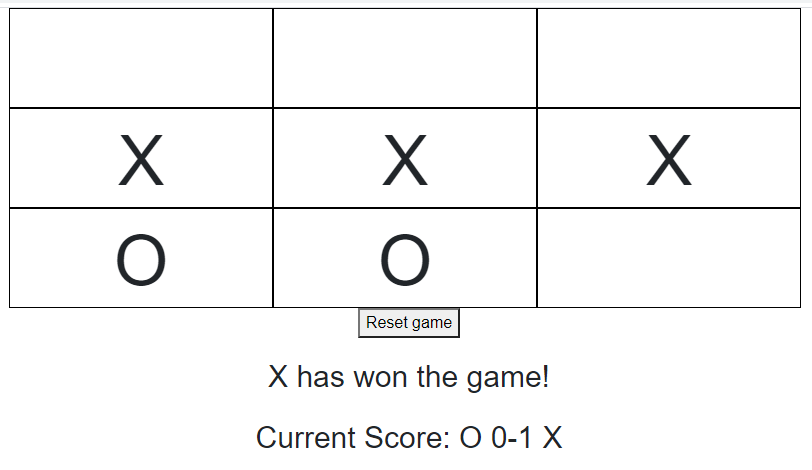
Playing Tic-Tac-Toe in Blazor WebAssembly
We also had time to configure some CSS. When using Blazor with .NET 5, we can explicitly define CSS for a particular Razor component.
Related tutorials
How to create the Connect 4 game in Blazor WebAssembly in one hour!
Creating the Connect 4 game using the .NET Blazor WebAssembly framework. The ASP.NET Core application uses C# & Razor components.